The Dropbox API is a comprehensive RESTful interface that allows developers to interact with Dropbox's cloud storage platform programmatically. Built on OAuth 2.0 with Scoped Access, the API provides fine-grained permission control, enabling applications to request only the specific capabilities they need. This guide will walk you through creating a Dropbox OAuth app using the DBX platform.
Prerequisites
Before you begin, ensure you have:
- A Dropbox account (free or paid)
- An Apideck account for unified API access
- Basic understanding of OAuth 2.0 concepts
- Development environment set up for your platform
Key OAuth Concepts
Authorization vs Authentication
- Authentication: Verifying user identity ("Who are you?")
- Authorization: Granting permission to access resources ("What can you do?")
Token Types
- Access Token: Short-lived (4 hours), used for API requests
- Refresh Token: Long-lived, used to obtain new access tokens
- Authorization Code: One-time use, exchanged for tokens
OAuth Flow Types
1. Authorization Code Flow (Recommended)
- Best for web applications and mobile apps
- Supports refresh tokens for offline access
- Most secure as client secret is protected
2. Implicit Flow (Deprecated)
- Previously used for client-side applications
- No longer recommended due to security concerns
- Replaced by Authorization Code Flow with PKCE
3. Authorization Code Flow with PKCE
- Enhanced security for public clients
- Prevents authorization code interception attacks
- Recommended for single-page applications and mobile apps
Access Types
Online Access
- Access token valid only while user is active
- Suitable for real-time, user-present applications
- No refresh token provided
Offline Access
- Provides refresh token for background operations
- Essential for automated workflows and data synchronization
- Requires explicit
token_access_type=offlineparameter
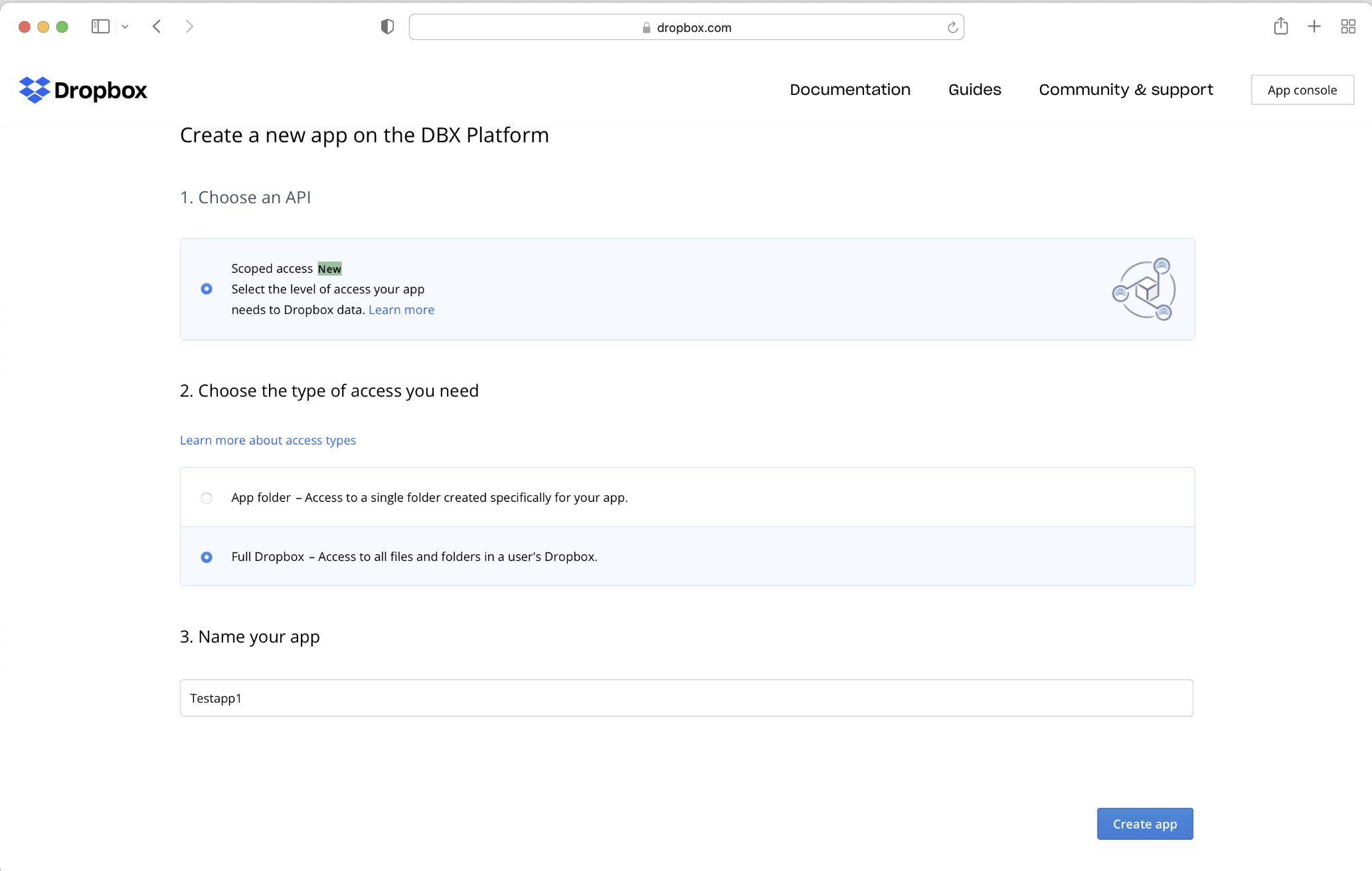
Step 1: Create a Dropbox App
-
Access the Dropbox developers page at https://www.dropbox.com/developers
-
Click Create App
-
Select the following options:
- API: Choose Scoped Access
- Type of Access: Select Full Dropbox (or App Folder if you only want access to a specific folder)
- Name your app: Enter a unique name (e.g., YourCompany-Integration)
-
Click Create App
Step 2: Configure App Settings
-
On the App Settings page:
- Copy the App Key (this will be your Client ID)
- Copy the App Secret (this will be your Client Secret)
-
Under OAuth 2, add a redirect URI:
- Use the callback URL:
https://unify.apideck.com/callback - Click Add to save it
- Use the callback URL:
-
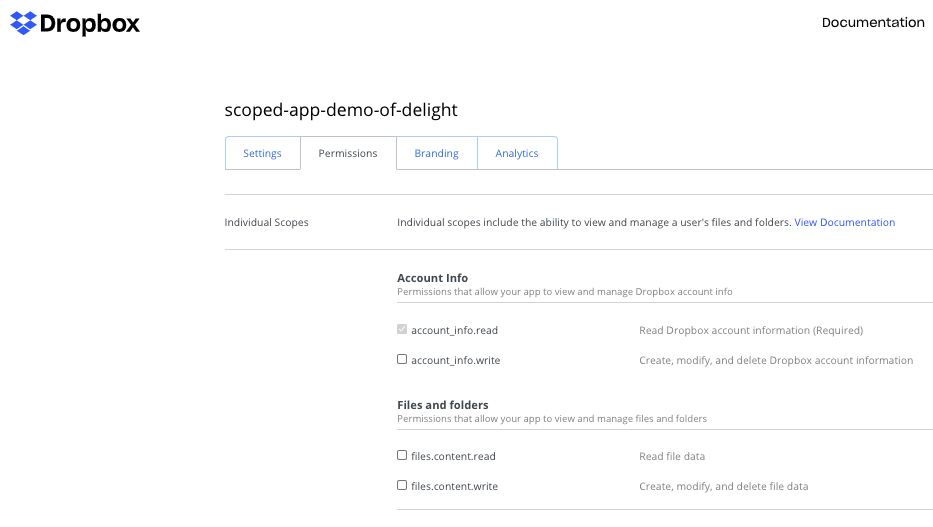
Under Permissions, make sure to assign these scopes:
-
account_info.read
View basic information about your Dropbox account such as your username, email, and country -
files.metadata.read
View information about your Dropbox files and folders -
files.metadata.write
View and edit information about your Dropbox files and folders -
files.content.read
View content of your Dropbox files and folders -
files.content.write
Edit content of your Dropbox files and folders
-
-
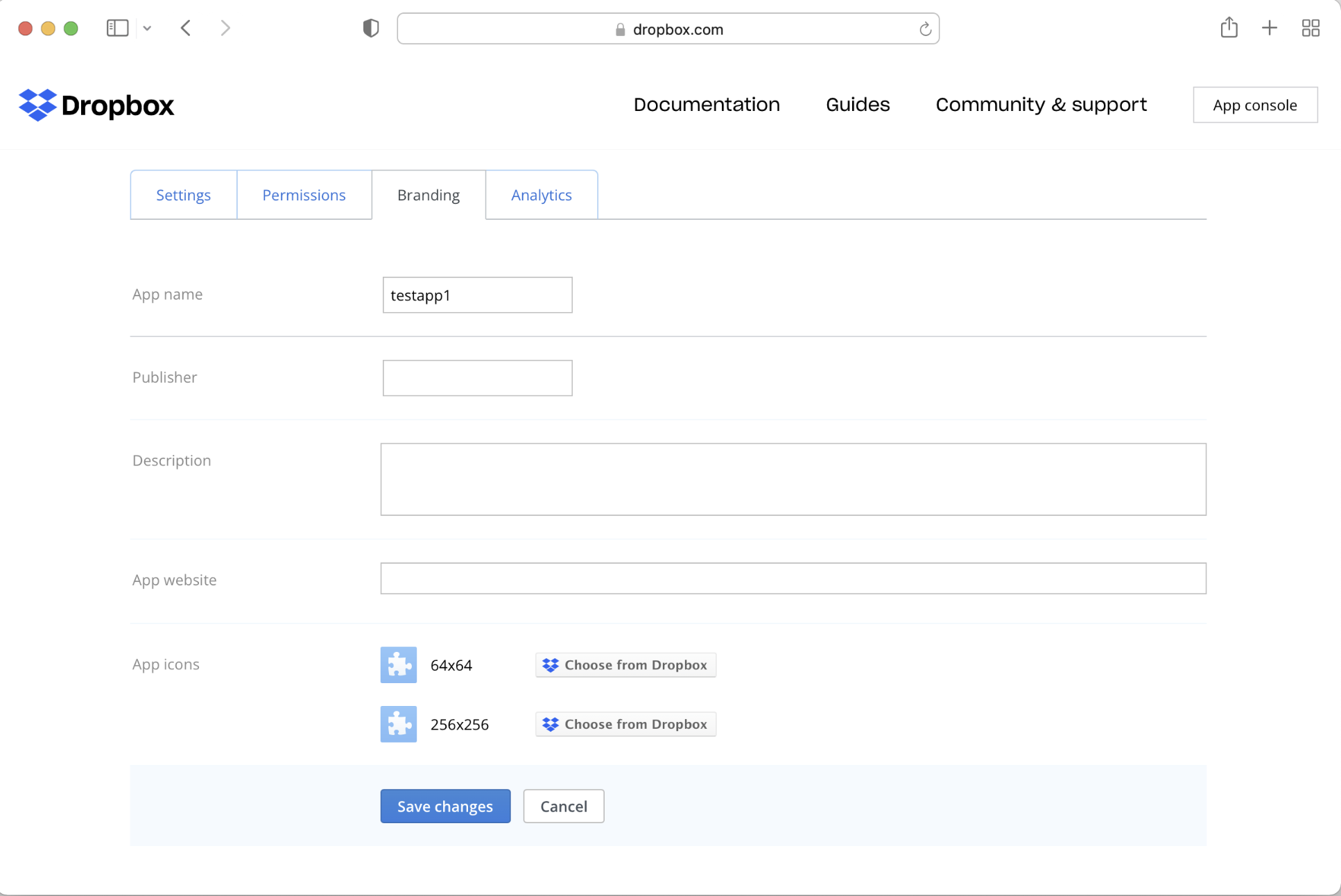
(Optional) Configure your domain name and logo on the Branding tab
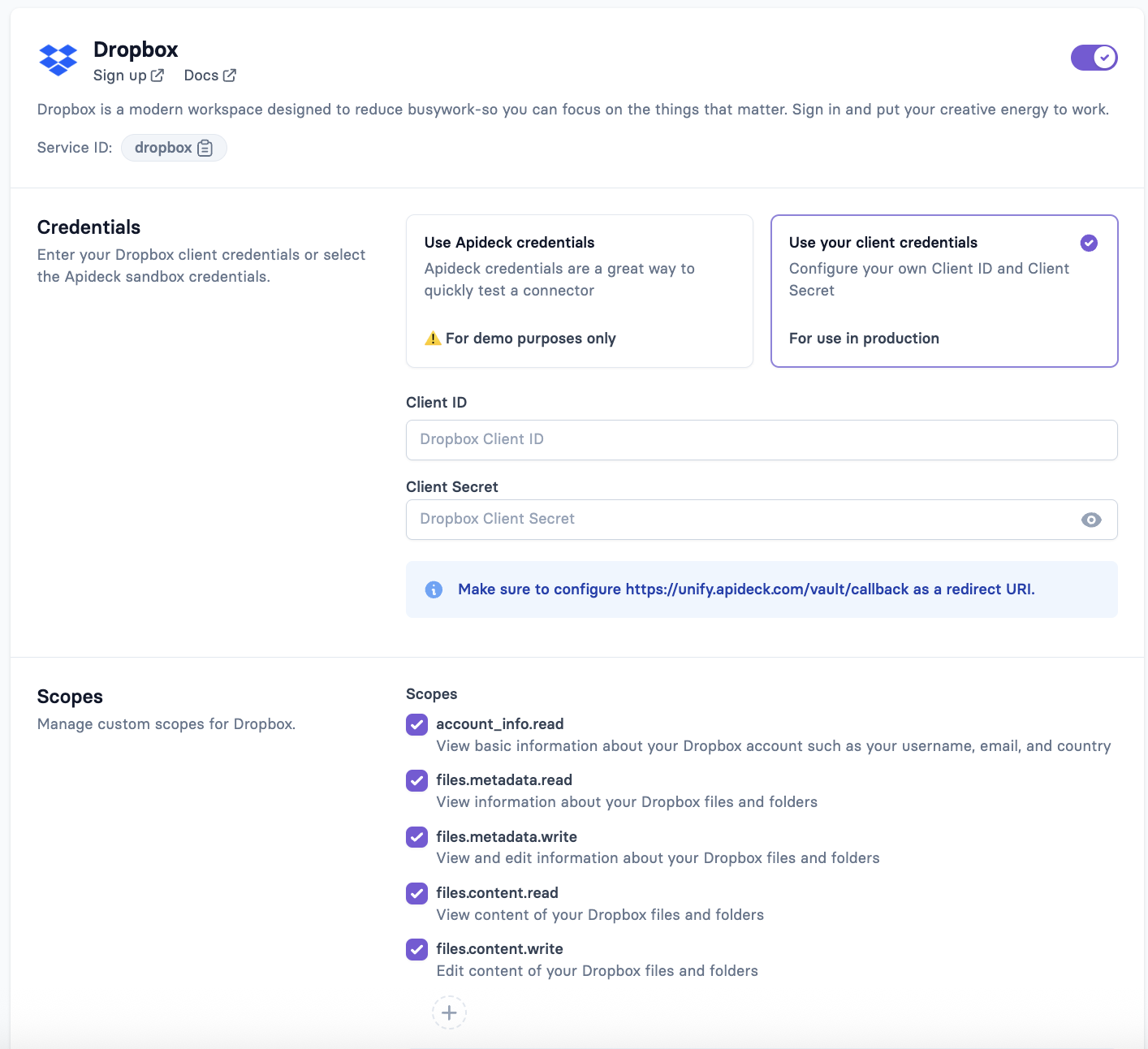
Step 3: Add Credentials to Your Apideck Dashboard
-
Log in to your Apideck Dashboard
-
Navigate to Configuration → Dropbox
-
Enter the Client ID and Client Secret you copied earlier
-
Save your changes
Step 4: Test the Connection
-
Go back to the Dropbox integration in your dashboard
-
Click Test Vault to launch a Dropbox sign-in window
-
You’ll be redirected to Dropbox to authorize the connection
-
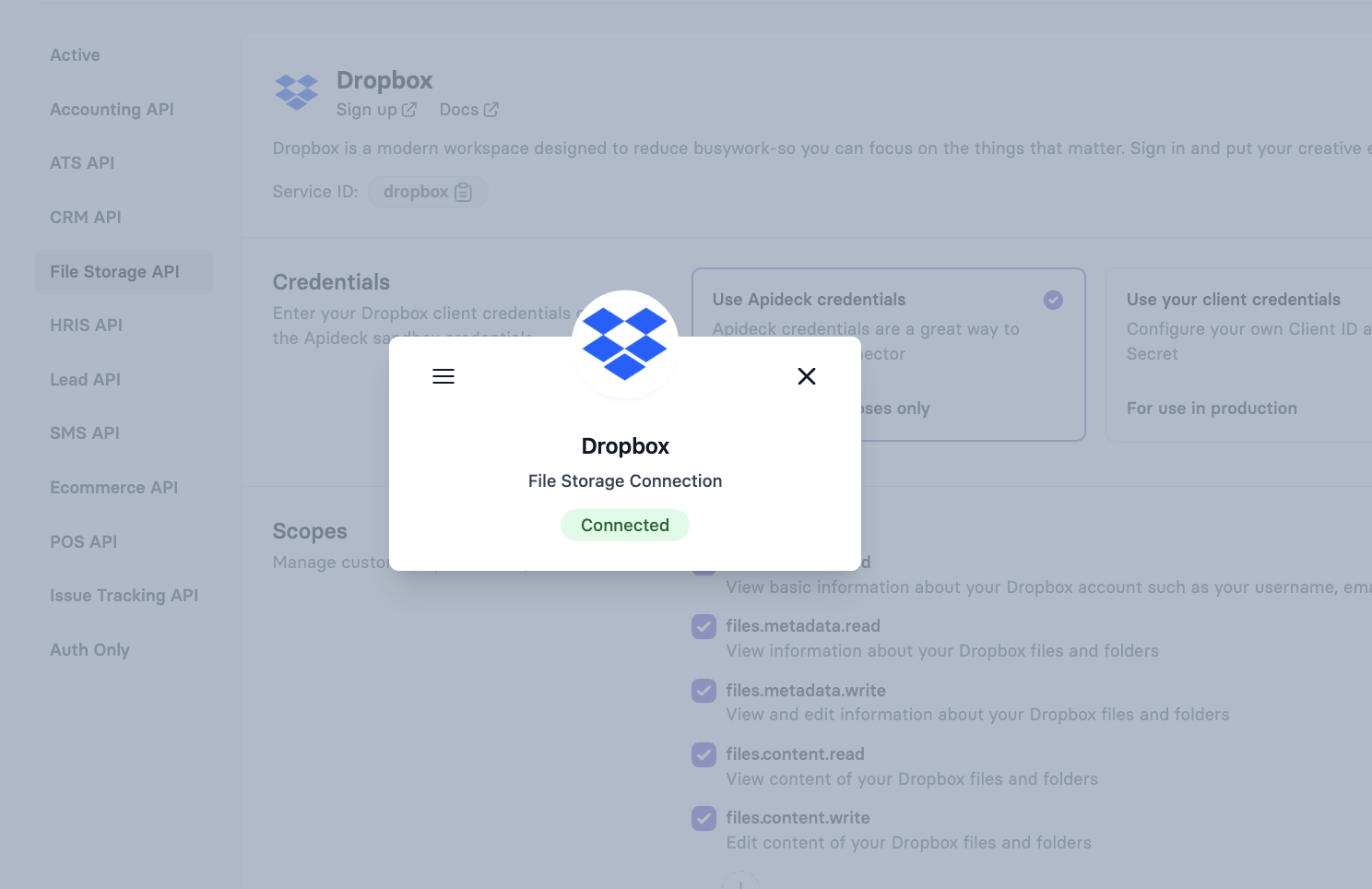
After granting access, you should see the integration status as Connected
Step 5: You’re ready to do your first API call 🎉
Your Dropbox integration is now set up and ready to use through Apideck to test the connection:
Make a test call to retrieve files:
curl --location --request GET 'https://unify.apideck.com/file-storage/files' \
--header 'x-apideck-consumer-id: test-consumer' \
--header 'x-apideck-app-id: {APIDECK_APP_ID}' \
--header 'x-apideck-service-id: dropbox' \
--header 'Authorization: Bearer {APIDECK_API_KEY}' \
--header 'Content-Type: application/json'
Start Building with the Dropbox API
Learn more about what you can build with the Dropbox File Storage API.
Additional Resources
Ready to get started?
Scale your integration strategy and deliver the integrations your customers need in record time.